 AI Mac Cleaner
Uninstall VLC Completely on a Mac: All the Leftover Spots
Here's how to uninstall VLC completely on a Mac: the preferences, caches and saved state hiding in 3 Library folders a plain Trash drag leaves behind.
If you want to uninstall VLC completely on a Mac, dragging it from /Applications to the Trash only removes the player itself. VLC is one of the most widely installed third-party apps on any Mac precisely because it plays almost anything without extra codecs — which also means it quietly builds up preference files, saved window state and cached data the longer you use it, all living outside the app bundle in your user Library.
Why dragging to the Trash isn't enough
Like almost every Mac app, VLC is really two things: the program itself in /Applications, and a set of support folders under ~/Library that it writes to while running — playback settings, remembered window positions, and cached data. Deleting the app bundle removes the interface; it does nothing to what VLC left behind, which is why reinstalling VLC later sometimes shows your old playback preferences still intact, inherited from files you never actually removed.
Where VLC's leftovers live
VLC stores its data under its developer identifier, org.videolan.vlc, rather than the plain word "VLC," in three general locations almost any macOS app uses outside its own bundle:
~/Library/Preferences— aorg.videolan.vlc.plistfile holding your playback settings, interface preferences and recently-played list.~/Library/Caches—org.videolan.vlc, VLC's local cache, rebuilt automatically if you reinstall.~/Library/Saved Application State—org.videolan.vlc.savedState, the window-and-tab state macOS restores if VLC reopens where you left off.
A full uninstall means clearing VLC's folder inside each of those three locations, not just the app icon.
Finding them by hand
Open Finder, press Shift-Command-G, and visit each of the three paths above, looking for a folder or file starting with org.videolan.vlc rather than the word "VLC" itself — matching by developer identifier instead of display name is exactly the detail manual searching gets wrong, since Finder's own search doesn't surface identifier-named folders as obviously as ones literally named after the app.
A quick way to clear just the preferences
If you only want to reset VLC's settings without a full uninstall — say, to fix a stuck playback preference — running defaults delete org.videolan.vlc in Terminal clears the preferences file without touching the app itself, then you can also remove the leftover .plist from ~/Library/Preferences if it's still there afterward.
How AI Mac Cleaner handles it instead
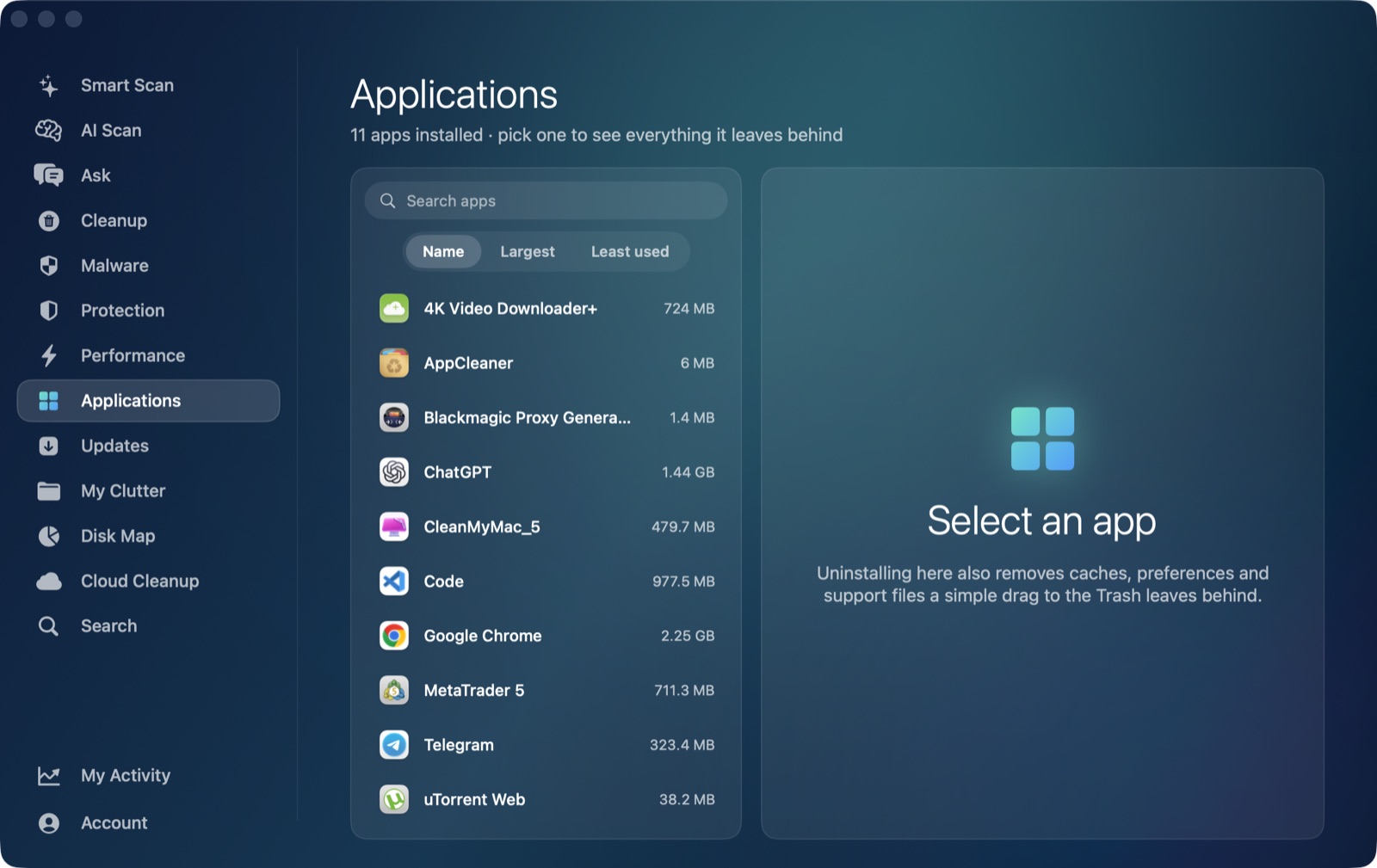
AI Mac Cleaner's Applications module works as an uninstaller that also finds an app's leftovers in ~/Library, matching by the app's own identifier rather than guessing from its display name — the same approach its Slack removal uses. Point it at VLC and it finds the preferences, cache and saved state together under org.videolan.vlc, shows you the list before anything moves, and removes the lot in one confirmed action — instead of hunting for an identifier-named folder by hand. For the general pattern this follows on any app, see uninstalling Mac apps properly.
Nothing is deleted outright
Every removal in AI Mac Cleaner goes through its Trash-only remover, which also refuses a fixed list of protected system paths — so if you remove VLC and its folders and later realize you wanted to keep a playback preference, it's recoverable from the Trash until you empty it yourself, on purpose.
If you'd rather not hunt through identifier-named Library folders by hand, AI Mac Cleaner's Applications module does the finding for you, on VLC or anything else installed. There's a 7-day free trial with every feature unlocked and no card required, and plans start at $6.99/mo after that.
Frequently asked questions
Does deleting VLC from Applications remove my playback settings too?
No. It removes the app bundle itself, but VLC's preferences, cache and saved window state stay in ~/Library under org.videolan.vlc until you remove them separately.
Why does reinstalling VLC sometimes keep my old settings?
Because the preferences file in ~/Library/Preferences survives a plain Trash-and-reinstall — VLC reads it back in as soon as it launches again, since the app bundle being removed doesn't touch that file.
What does org.videolan.vlc mean, and why does it matter for removal?
It's VLC's developer identifier, used to name its folders in ~/Library instead of the plain word "VLC." Searching for "VLC" alone in Finder can miss these identifier-named folders, which is the main reason manual uninstalls leave things behind.
Is it safe to delete VLC's leftover folders myself in Finder?
Yes, once the app is already removed — match folders by the org.videolan.vlc identifier rather than name alone, and move things to the Trash rather than deleting directly so a mistake stays recoverable.
How is AI Mac Cleaner's uninstaller different from just dragging VLC to the Trash?
It removes the app and then specifically searches ~/Library for VLC's own leftover folders by its org.videolan.vlc identifier, shows you the list before anything happens, and moves everything to the Trash rather than deleting it outright — one confirmed action instead of searching for an identifier-named folder by hand.