 AI Mac Cleaner
Clear QuickLook Thumbnail Cache on Mac: The Safe, Supported Way
Finder icon previews and Quick Look sometimes show an old or broken thumbnail after a file changes. Apple's own fix isn't deleting files by hand — it's a one-line Terminal command. Here's how it actually works.
Every time Finder shows a file's icon as a tiny preview of its actual contents, or you tap the spacebar for a Quick Look peek, macOS is reading from a thumbnail cache rather than regenerating that preview from scratch each time. Most of the time this is invisible and exactly as fast as it should be — but it can occasionally go stale, showing an old version of an image after you've edited it, or a generic icon instead of a real preview. When that happens, Apple's own supported fix isn't hunting down cache files to delete by hand; it's a built-in command.
Why thumbnails go stale
The thumbnail cache is keyed to a file, generated once and reused until something tells macOS it needs refreshing. Most of the time edits trigger that refresh automatically. Occasionally — after a crashed app, an unusual file format, or a file edited by a tool that doesn't update its modification metadata the way Finder expects — the cached thumbnail sticks around after the real content has changed, and Finder keeps showing you the old one.
The supported way to clear it
Apple provides a command-line tool, qlmanage, specifically for managing Quick Look. Open Terminal and run:
qlmanage -r cache
This resets the Quick Look thumbnail cache system-wide. If thumbnails still look wrong for a specific file type afterward, also run:
qlmanage -r
which reloads Quick Look's plugins (the small extensions that let it preview specific file formats). Between the two, this covers the vast majority of "Finder is showing me the wrong preview" cases without touching any files you actually care about — you're resetting a cache, not deleting content.
What not to do
Hunting through ~/Library/Caches looking for a thumbnail folder to delete by hand isn't the supported approach here, and the exact internal cache location has moved between macOS versions, so instructions you find for an older system may point at a path that no longer exists or isn't where the live cache actually lives on your current version. qlmanage -r cache is the command Apple's own Quick Look tooling exposes for exactly this, and it works the same way regardless of which macOS version you're on.
If a restart is needed
In the rare case a reset through qlmanage doesn't clear things up, a full restart forces every background process — including the one responsible for generating thumbnails — to start clean. This is a bigger hammer than most people need, so it's worth trying the Terminal commands above first.
A related but different problem: Finder itself looking wrong
Stale thumbnails are sometimes confused with a separate issue — Finder's icon view or Preview column just generally feeling sluggish on a folder full of large files, like a Downloads folder packed with videos and archives. That's less about any one cached thumbnail being wrong and more about the sheer number of large files Finder has to generate previews for in the first place; if that sounds familiar, our guide to a cluttered Downloads folder covers clearing out what's actually accumulating there, which indirectly makes Finder's own preview generation lighter too.
How AI Mac Cleaner helps
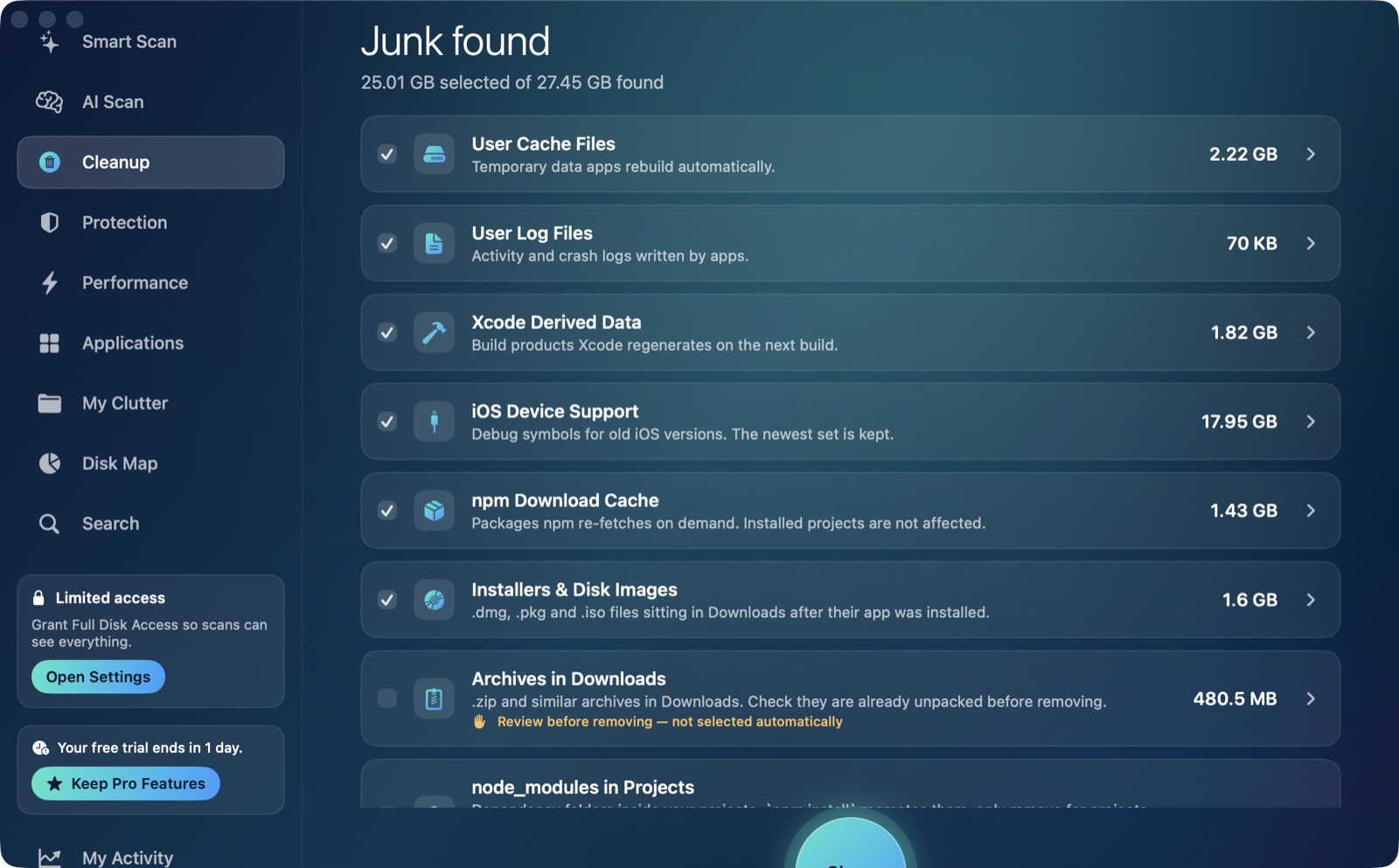
AI Mac Cleaner's Cleanup module is built around the same idea qlmanage -r cache uses for Quick Look specifically: clearing a cache is safe precisely because a cache is disposable data that gets rebuilt automatically, not something you lose permanently. Its User Cache Files category sweeps the broader ~/Library/Caches tree the same safe way, reviewed before anything moves and Trash-only rather than deleted outright — the same approach covered in more depth for a specific app's cache, Discord, rather than a system-level one like Quick Look's. It doesn't reach into Quick Look's own internal cache specifically — that's exactly what qlmanage -r cache is for — but if a stale Finder preview was one symptom of a Mac that's generally overdue for a cache cleanup, the two are worth doing together.
A quick before-and-after check
After running qlmanage -r cache, open the specific file that was showing a stale thumbnail and press the spacebar for a Quick Look peek, or just refresh the Finder window (Cmd+R or navigate away and back). You should see an up-to-date preview immediately — there's no waiting period or background processing step after the reset finishes.
Frequently asked questions
Will clearing the QuickLook cache delete any of my files?
No. You're clearing a cache of generated previews, not the files themselves — nothing you can see, edit or open is affected. Thumbnails simply regenerate the next time Finder or Quick Look needs them.
Do I need to restart my Mac after running qlmanage -r cache?
Usually not — the command takes effect immediately for new previews. A restart is only worth trying if thumbnails are still wrong after both qlmanage -r cache and qlmanage -r.
Why does only one file type show wrong thumbnails?
That usually points to the specific Quick Look plugin for that file format rather than the whole cache — qlmanage -r (without cache) reloads plugins specifically and is the more targeted fix for a single-file-type problem.
Is it safe to run qlmanage commands without admin access?
Yes — both commands operate on your own user-level Quick Look cache and don't require sudo or an administrator password.