 AI Mac Cleaner
How to Uninstall Microsoft Office Completely on a Mac
Microsoft's own support page tells you exactly which folders to remove — including three "Group Containers" folders named by a developer ID rather than Office's own bundle identifiers.

If you want to uninstall Microsoft Office completely on a Mac, Microsoft's own support documentation already lays out the exact steps — which is more than most software vendors bother to publish. Dragging Word, Excel, PowerPoint, Outlook and OneNote to the Trash is the easy part; the leftover data that survives that step lives in specific, named folders under ~/Library, and Microsoft tells you precisely which ones.
Removing the applications
- Open Finder, go to Applications, and Command-click to select every Microsoft 365 / Office app you have installed.
- Control-click the selection and choose Move to Bin (what Microsoft's Mac documentation calls the Trash).
- If any Office apps are pinned to the Dock, Control-click each one, choose Options, then Remove from Dock.
That removes the apps themselves, but none of their support data.
What Microsoft's own uninstall guide tells you to remove next
Microsoft's official "Uninstall Office for Mac" support page walks through two separate ~/Library folders, reached by pressing Command-Shift-G in Finder and typing the path directly.
In ~/Library/Containers, Control-click each of these (not all may be present, depending on which apps you had installed) and move it to the Bin:
- Microsoft Error Reporting
- Microsoft Excel
com.microsoft.netlib.shipassertprocesscom.microsoft.Office365ServiceV2- Microsoft Outlook
- Microsoft PowerPoint
com.microsoft.RMS-XPCService- Microsoft Word
- Microsoft OneNote
Microsoft's page is direct about one risk here: removing the Outlook container folder deletes locally stored mail that no server copy replaces for most account types, so back up anything you need before touching it if you've used Outlook.
In ~/Library/Group Containers, three more folders, also removed if present:
UBF8T346G9.msUBF8T346G9.OfficeUBF8T346G9.OfficeOsfWebHost
Finally, Microsoft's guide says to restart the Mac to finish the process. Notably, the official steps don't mention removing anything from Keychain Access or a separate license/activation file — just the apps and those two Library folders.
Why the Group Containers folders are the part worth understanding
Those three Group Containers folders are named UBF8T346G9.something rather than anything resembling "Office" or "Microsoft" — UBF8T346G9 is Microsoft's Apple Developer Team ID, a 10-character identifier Apple assigns per developer account, not an Office-specific bundle identifier. It's the exact same naming pattern behind the Group Containers gap we covered for Microsoft Teams — Microsoft uses its Team ID prefix for shared data folders across several of its Mac apps, Office included, rather than naming each one after the specific app.
The regular ~/Library/Containers folders, by contrast, are a different story on disk even though Finder shows some of them with friendly display names like "Microsoft Word": macOS names a sandboxed app's container folder after its actual bundle identifier (com.microsoft.Word, for instance, is Word's documented bundle ID), and Finder overlays a friendlier label for display purposes only. That distinction matters for what an automated uninstaller can and can't find, covered next.
How AI Mac Cleaner handles it — and exactly where it stops
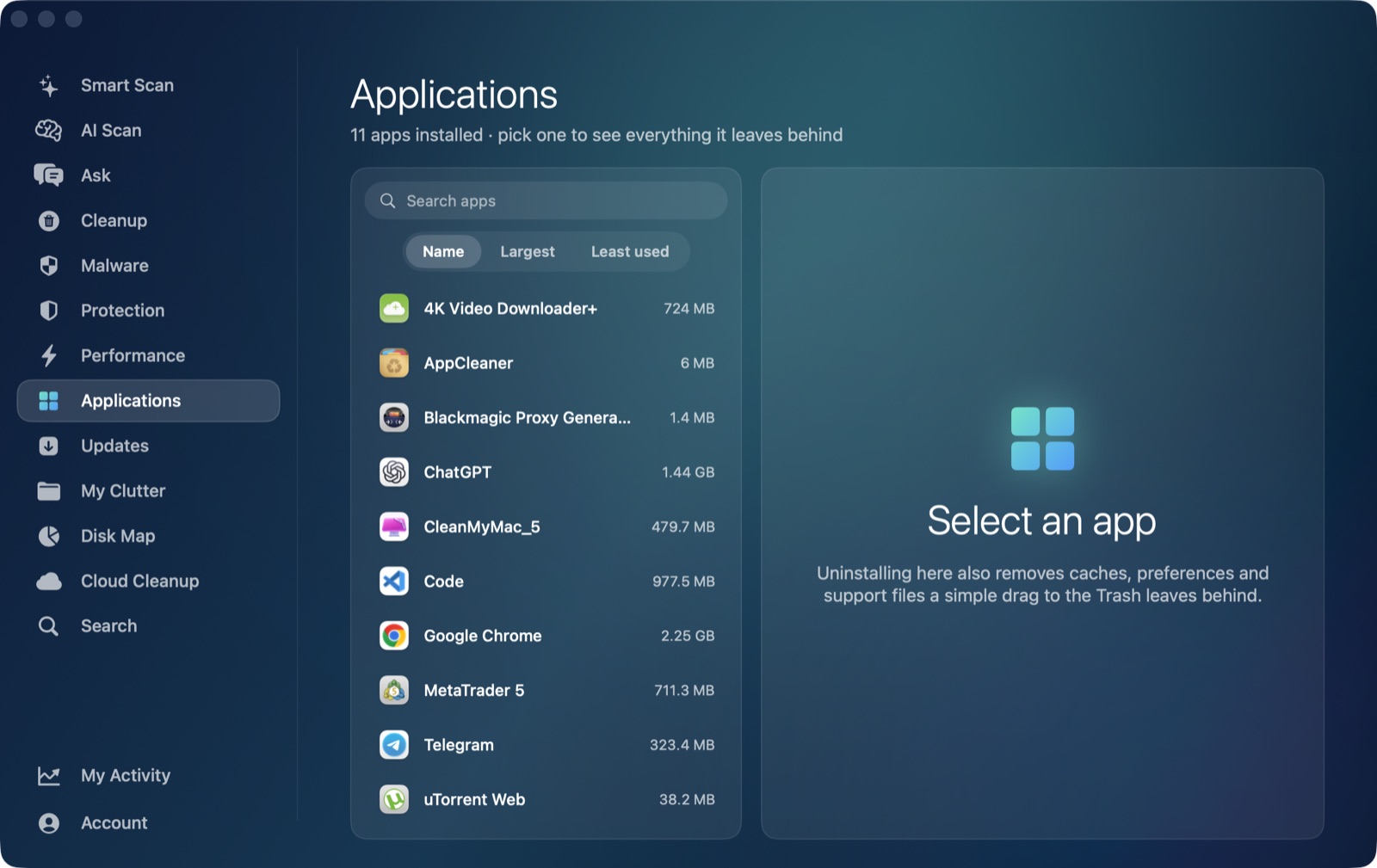
AI Mac Cleaner's Applications module works as an uninstaller that also finds an app's leftovers, matching by the installed app's own bundle ID (or, in a few specific folders, its display name) across ~/Library's Application Support, Caches, Logs, Preferences, Preferences/ByHost, Saved Application State, HTTPStorages, WebKit, Cookies, Containers, Application Scripts and LaunchAgents folders. For Word's ~/Library/Containers/com.microsoft.Word, that means the module finds and offers it directly, since the folder on disk is genuinely named after the bundle ID, whatever friendly label Finder happens to show on top of it.
Worth being just as direct about the gap, the same way we are for Teams: the Applications module doesn't scan ~/Library/Group Containers at all, so UBF8T346G9.ms, UBF8T346G9.Office and UBF8T346G9.OfficeOsfWebHost aren't part of its automatic scan — and no bundle-ID match would catch them regardless, since none of the three is named after any individual Office app's identifier in the first place. This isn't specific to Office or to AI Mac Cleaner; any uninstaller that identifies leftovers by matching bundle IDs against folder names runs into the same blind spot with Group Containers generally, across any app that uses them.
What helps with that one: point Disk Map's treemap at ~/Library/Group Containers, or use Search for "UBF8T346G9" directly, to locate and size the three Office-related folders, then move them to the Trash through the app so the removal is still recoverable until you empty it.
One thing the Applications module deliberately never does: list Apple's own apps, itself, or Claude as something you could uninstall. It's built for clearing out third-party software you installed and no longer want.
Nothing is deleted outright
Every removal in AI Mac Cleaner goes through its Trash-only remover, which also refuses a fixed list of protected system paths — so if you remove Office and need something back, like an Outlook data file you didn't mean to clear, it's recoverable from the Trash until you empty it yourself, on purpose. If you're clearing out Office alongside Adobe's Creative Cloud apps on the same Mac, our Creative Cloud uninstall post covers the same shape of problem for a different vendor.
AI Mac Cleaner has a 7-day free trial with every feature unlocked and no card required, plans from $6.99/mo after.
Frequently asked questions
Does Microsoft publish official uninstall steps for Office on Mac?
Yes — Microsoft's own "Uninstall Office for Mac" support page lists the exact apps to remove and two specific ~/Library folders (Containers and Group Containers) to clear afterward, including which individual folder names to look for in each.
What are the Group Containers folders for Office, and why do they matter?
UBF8T346G9.ms, UBF8T346G9.Office and UBF8T346G9.OfficeOsfWebHost, named by Microsoft's Apple Developer Team ID rather than by any individual Office app. They matter because tools that find leftovers by matching an app's own bundle ID against folder names — AI Mac Cleaner included — have no way to recognize them as Office-related, since none of the three carries an Office app's identifier.
Will removing Office's Containers folders delete my Outlook mail?
Possibly, for data stored locally rather than synced from a server — Microsoft's own support page warns about this specifically for the Outlook container folder. Back up anything you need before removing it if you've used Outlook.
Can AI Mac Cleaner find and remove Office's leftover files?
For the standard ~/Library/Containers folders named after each app's bundle ID (like Word's com.microsoft.Word), yes — the Applications module's identifier-based matching finds and offers those. The separate Group Containers folder, named by Microsoft's Team ID instead, isn't part of that automatic scan; Disk Map or Search can locate it manually.
Is it safe to delete these folders myself in Finder instead?
Yes, once the apps are already uninstalled — follow Microsoft's own folder list above and move things to the Trash rather than deleting them directly, so a mistake stays recoverable until you empty it.