 AI Mac Cleaner
SearchPartyUserAgent High CPU on Mac: What It Is and How to Fix It
SearchPartyUserAgent high CPU on a Mac is tied to Find My's offline-finding network. Here's what it does, when it's normal, and what actually settles it down.
SearchPartyUserAgent high CPU turns up in Activity Monitor more often than most people expect, given that it's tied to a feature most people never think about day to day: Find My's offline-finding network, the system that lets a lost Mac, iPhone or AirTag be located even when it isn't connected to Wi-Fi, by anonymously pinging nearby Apple devices over Bluetooth.
What SearchPartyUserAgent actually does
SearchPartyUserAgent is the user-facing half of Apple's "Search Party" system — its sibling, searchpartyd, runs as a background daemon. Together they handle the Find My network: broadcasting and listening for the encrypted Bluetooth signals that let Apple devices (including AirTags and any Mac with Find My enabled) be located by other nearby Apple hardware without needing an active internet connection. Scanning for and responding to those signals is genuine, continuous background work by design — Find My's entire offline-finding feature depends on it running.
When SearchPartyUserAgent high CPU is normal
A moderate, ongoing level of activity is expected if you have Find My Mac enabled at all, since offline finding is always listening in the background. Short spikes above that baseline are normal around:
- Waking from sleep, when it re-establishes Bluetooth scanning after being paused.
- Being away from a trusted Wi-Fi network, since offline finding becomes more active specifically because your Mac can't rely on an internet connection to report its location the normal way.
- Right after toggling Find My Mac, Bluetooth, or Location Services, while the feature's state re-syncs.
When it's worth a second look
The pattern that indicates an actual problem is SearchPartyUserAgent staying pinned at a high, sustained level rather than a moderate background hum — often reported alongside "Prevent computer from sleeping" being enabled, which can leave the process stuck continuously scanning instead of settling into its normal lower-activity pattern once your Mac would otherwise have gone to sleep. The checks worth doing, roughly in order:
- Check your sleep settings. System Settings → Lock Screen (or Energy on older versions) — if "Prevent your Mac from sleeping automatically when the display is off" is on, especially combined with the Mac staying plugged in and awake for long stretches, try turning it off and see whether usage settles.
- Toggle Bluetooth off and back on. Offline finding depends on Bluetooth; a stuck Bluetooth state can leave SearchPartyUserAgent scanning repeatedly without success.
- Temporarily turn off Find My Mac, as a diagnostic step rather than a permanent fix — System Settings → [your name] → iCloud → Find My Mac. If CPU usage drops right away, that confirms the cause without you having to guess; you can turn it back on afterward once you've decided how to proceed.
- Restart your Mac. As with any background daemon, a restart clears stuck scanning state cleanly if the steps above don't resolve it.
Turning off Find My Mac is a real tradeoff, not just a fix
Before disabling Find My Mac to stop this permanently, it's worth being clear-eyed that you're giving up the ability to locate or remotely lock a lost or stolen Mac — including the offline-finding capability that's the whole reason this process exists. For most people, a temporary toggle to confirm the cause, followed by addressing the actual trigger (usually the sleep setting above), is the better trade than leaving Find My Mac off long-term.
Where AI Mac Cleaner fits in
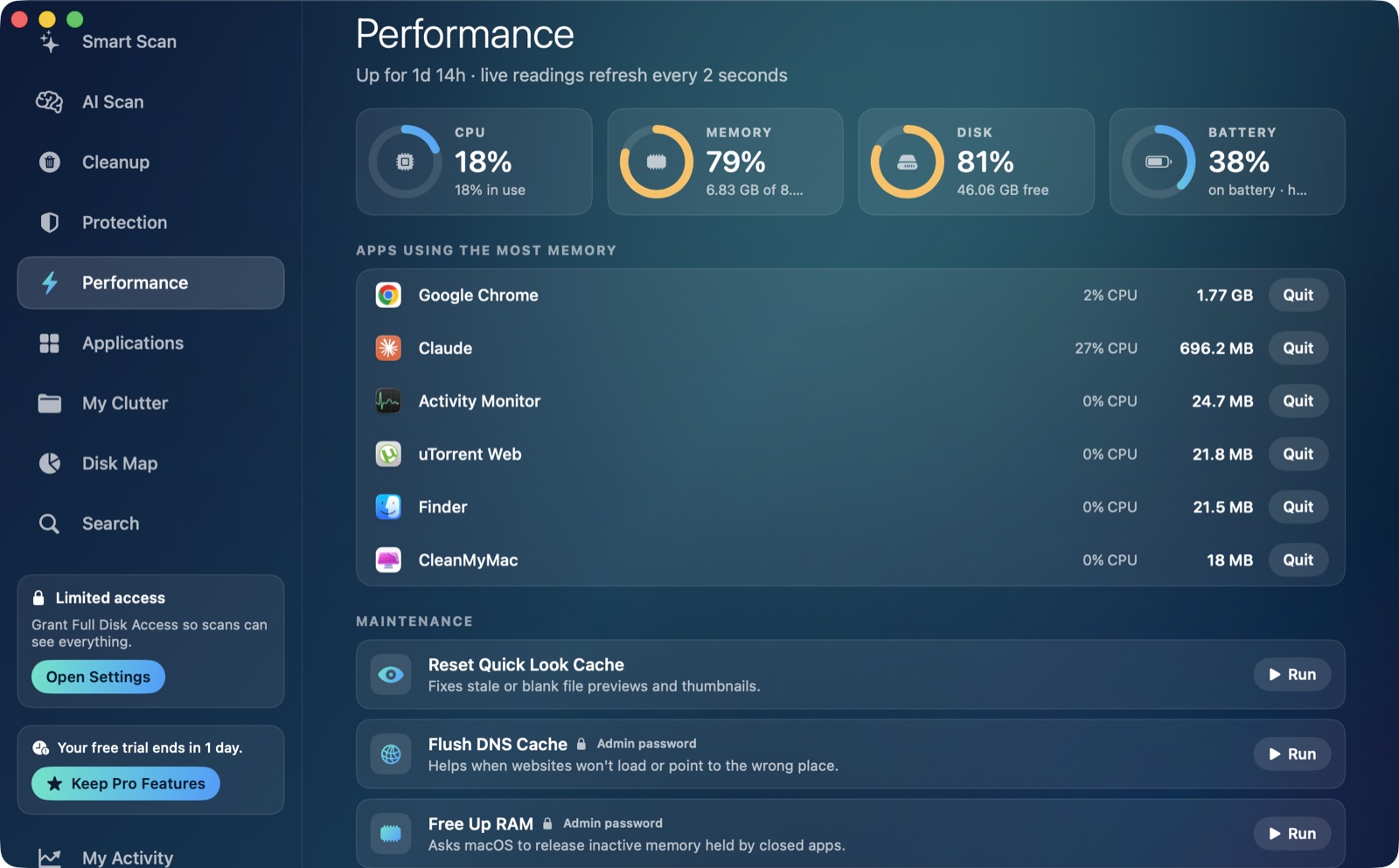
AI Mac Cleaner's Performance module shows SearchPartyUserAgent in the same live, ranked CPU view as coreduetd and every other process competing for a core right now, so you can see whether it's actually the sustained top consumer or just a brief, expected spike — useful before deciding whether a sleep-setting change or a Find My toggle is actually warranted. It isn't a process the app would ever offer to remove or disable; it's part of Apple's own device-security network, not junk, so the honest answer here is visibility, not a cleanup action.
AI Mac Cleaner has a 7-day free trial with every feature unlocked and no card required, plans from $6.99/mo after.
Frequently asked questions
Is SearchPartyUserAgent spyware or a tracker?
No — it's part of Apple's own Find My offline-finding network, used to locate your own lost devices via encrypted, anonymous Bluetooth signals exchanged with other Apple hardware nearby. It isn't third-party tracking software.
Why is SearchPartyUserAgent always using some CPU, even at idle?
Because offline finding is continuous by design — if Find My Mac is enabled, the feature needs to keep scanning in the background to work at all, so a low, steady baseline of activity is expected rather than a bug.
Does disabling "prevent sleep" actually reduce SearchPartyUserAgent's CPU use?
For some users, yes — a Mac that never sleeps can leave this process stuck in continuous high-activity scanning instead of settling into a lower-activity state the way it would if the Mac slept normally.
Will turning off Find My Mac stop the high CPU usage?
Yes, since the process has nothing to do once the feature is off — but that also means giving up the ability to locate or remotely lock the Mac if it's ever lost or stolen, which is worth weighing before disabling it long-term rather than just as a diagnostic toggle.
Does AI Mac Cleaner let me disable or remove SearchPartyUserAgent?
No, and it shouldn't — it's part of Apple's own Find My device-security network, not an app or junk file. AI Mac Cleaner's Performance module shows it in the live CPU view so you can judge whether it's behaving normally before deciding whether to change a sleep setting or toggle Find My Mac yourself.