 AI Mac Cleaner
bluetoothd High CPU on Mac: What It Is and What to Check
bluetoothd is macOS's own Bluetooth daemon, quietly managing every paired accessory. A sustained CPU spike from it is uncommon but reported, usually tied to a specific device or a wake-from-sleep glitch — here's what to check.

If bluetoothd is sitting high in Activity Monitor, it's a core macOS system process — not something you installed, and not malware. Its job is to manage every Bluetooth accessory connected to your Mac: AirPods, a wireless mouse or keyboard, a trackpad, a game controller, or a car's hands-free system. Under normal conditions it uses almost no CPU at all, which is exactly why a sustained spike is worth a second look rather than something to immediately dismiss.
When this usually shows up
The most commonly reported trigger is waking from sleep with a Bluetooth accessory already paired. macOS has to re-establish every paired connection on wake, and if one accessory is slow to respond, has a weak battery, or has a flaky firmware connection, bluetoothd can spin while it keeps retrying. A second common pattern is one specific "problem" accessory: a mouse or headset that disconnects and reconnects repeatedly keeps the daemon busier than a stable one ever would. It's rarely every accessory at once — isolating which device is paired when the spike happens is the fastest way to narrow it down.
What to check first
- Open Bluetooth settings (System Settings → Bluetooth) and look at what's currently connected. If the spike lines up with a specific accessory reconnecting repeatedly, that device — not macOS itself — is the actual source.
- Unpair and re-pair the suspect accessory. This clears out any stale connection state for that one device without touching anything else.
- Check for a firmware or driver update for the accessory itself, especially third-party mice, keyboards or headsets — outdated Bluetooth firmware is a common cause of repeated reconnect loops.
- Reset the Bluetooth module if the problem isn't tied to one obvious device. Hold Option + Shift and click the Bluetooth icon in the menu bar, then choose Debug → Reset the Bluetooth module. This is Apple's own supported troubleshooting step, not a hidden hack, and it doesn't erase your Mac's other settings.
- Restart the Mac if the spike has been running for a while —
bluetoothdcan occasionally get stuck in a retry loop that only clears on relaunch.
What this isn't
A one-off, short spike right after your Mac wakes up is normal and not worth chasing — give it a minute to settle before assuming anything's wrong. It's a sustained spike, one that doesn't settle down after a minute or two of normal use, that's actually worth troubleshooting.
A note on AirPods specifically
AirPods and other Apple accessories are generally the most reliable Bluetooth devices to pair with a Mac, since both ends of the connection are built by Apple, but they're not immune to this. If you use AirPods for calls and also have them paired to an iPhone or iPad, rapid switching between devices (every time a call comes in on your phone, for example) can occasionally leave bluetoothd doing more reconnect work than usual. Turning off automatic ear detection temporarily, or disconnecting from one device while focused on the other, is a reasonable way to test whether that's the pattern you're seeing.
When it's worth just living with it
If the spike is brief, infrequent, and your Mac otherwise feels responsive, it's fair to not chase it any further — bluetoothd briefly working harder after a wake-from-sleep event is a known, benign pattern, not a sign something is broken. The troubleshooting steps above are for the case where it's frequent enough, or long enough, that it's actually affecting how your Mac feels to use.
How AI Mac Cleaner helps
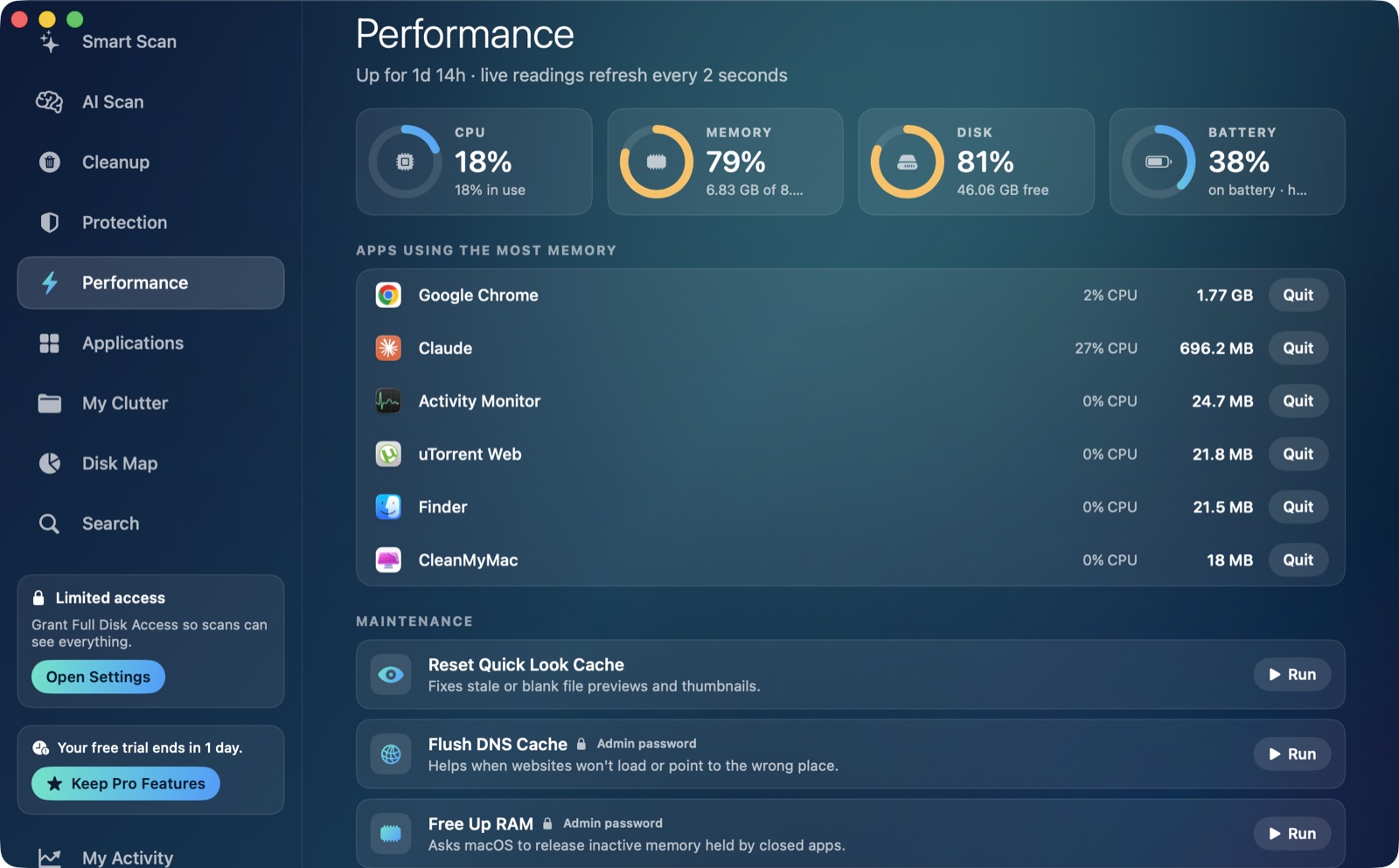
AI Mac Cleaner's Performance module shows a live, ranked list of CPU usage by process, the same view Activity Monitor gives you, so you can confirm bluetoothd is actually the one spiking (and for how long) rather than guessing from a one-off glance. What it can't do is fix a flaky Bluetooth accessory or its firmware — that's hardware- and driver-level, outside what any Mac-cleaning app reaches. Where the app does help directly is cutting out noise elsewhere: if your Mac is already under load from a full System Data store or a backlog of junk files, clearing that first makes it easier to tell whether a process spike is isolated or just one symptom of a Mac that's generally under strain.
Frequently asked questions
Is bluetoothd a virus or spyware?
No. It's a standard macOS system daemon with no settings panel or icon of its own, responsible for managing Bluetooth accessory connections. It ships with every Mac and isn't something you can or should remove.
Why does bluetoothd spike right after my Mac wakes from sleep?
Waking from sleep forces macOS to re-establish every paired Bluetooth connection at once. If one accessory is slow to reconnect or has a weak signal, the daemon can spin while retrying. It usually settles within a minute; if it doesn't, the steps above help isolate which device is responsible.
Will resetting the Bluetooth module disconnect all my devices?
Yes, temporarily — it clears the module's current connection state, so every paired accessory will need to reconnect afterward. Your paired-device list itself isn't erased.
Can AI Mac Cleaner fix a Bluetooth accessory that keeps disconnecting?
No — that's a hardware/firmware-level issue the accessory's own manufacturer or macOS's Bluetooth settings need to resolve. AI Mac Cleaner can confirm whether bluetoothd is actually the process using CPU, which helps you decide whether it's worth troubleshooting further.