 AI Mac Cleaner
Screenshots Taking Up Space on Mac? Here's Why
Screenshots taking up space on Mac is an easy thing to miss — they default to your Desktop, pile up for years, and nothing ever clears them automatically on its own.
Screenshots taking up space on Mac is a slow, invisible kind of clutter. They don't feel like a storage problem while you're taking them — each one is small, a few hundred kilobytes up to a few megabytes depending on resolution and content. The problem is that nothing on macOS ever clears them for you, and years of Cmd+Shift+4 or Cmd+Shift+5 add up to hundreds or thousands of files sitting in one place, quietly outgrowing a folder you probably haven't looked at in months.
Where your screenshots actually go
By default, macOS saves every screenshot straight to your Desktop — not to a dedicated Pictures subfolder the way some other systems do it automatically. That's been the default behavior since the Grab-app era, and it's still true in current macOS. If your Desktop has felt cluttered for a while, screenshots named Screenshot 2024-03-14 at 2.17.33 PM.png and similar are very often a big part of why, mixed in among whatever else lives there.
You can change where new screenshots save: press Cmd+Shift+5 to bring up the Screenshot toolbar, click Options, and choose a different folder under "Save to" — Documents, Desktop, Clipboard, Mail, Messages, Preview, or "Other Location" for anywhere you like. It's a sticky setting, so every screenshot after that keeps going to wherever you picked, until you change it again. Useful to know, but it only helps going forward — it does nothing about screenshots already piled up from before you changed it.
Why they're easy to lose track of
A single screenshot is too small to ever trip a "your disk is almost full" warning on its own, and too small to show up on most "largest files" lists, which tend to surface individual files in the hundreds of megabytes or gigabytes. It's the sheer count that adds up — a few screenshots a day, every day, for a couple of years, and you're easily looking at several gigabytes spread across thousands of small PNG files that no single scan flags as "large."
They're also easy to forget because they rarely look stale. A screenshot from eighteen months ago sits right next to this morning's on your Desktop, visually indistinguishable from something you might still need, so there's no obvious moment that prompts a clean-out the way an old installer or a finished project folder does.
Finding and clearing them
- Check the size first. Right-click your Desktop folder (or wherever you've saved screenshots) in Finder and choose Get Info for a quick total, or open a Finder window, switch to list view, and sort by Date Modified to see how far back they go.
- Search by name. Spotlight (
Cmd+Space) searching "Screenshot" surfaces every file macOS named that way, regardless of which folder it ended up in — useful if you've changed the save location more than once over the years. - Sort before you delete. Switching a Finder window to list view and sorting by date makes it easy to batch-select everything older than, say, six months, rather than reviewing each file individually.
- Move the batch to the Trash, then empty it. Screenshots are recreatable only in the sense that you could retake one if you still needed the content — once deleted, the actual file is gone, so a quick skim before emptying the Trash is worth the extra minute.
What AI Mac Cleaner actually catches here — and what it doesn't
Worth being direct about this one, the same way we are for any folder outside the app's cache-category scanning: AI Mac Cleaner's My Clutter module scans your Desktop, Documents, Downloads, Pictures, Movies and Music folders for large files (50MB and up) and exact duplicates (matched by full SHA-256 content hash, so only byte-identical copies count). A typical screenshot is a few hundred kilobytes to a few megabytes — well under that 50MB large-file threshold individually — so one screenshot by itself won't show up in the large-files list, and the duplicates check only catches it if you happen to have the exact same screenshot saved twice, which is uncommon.
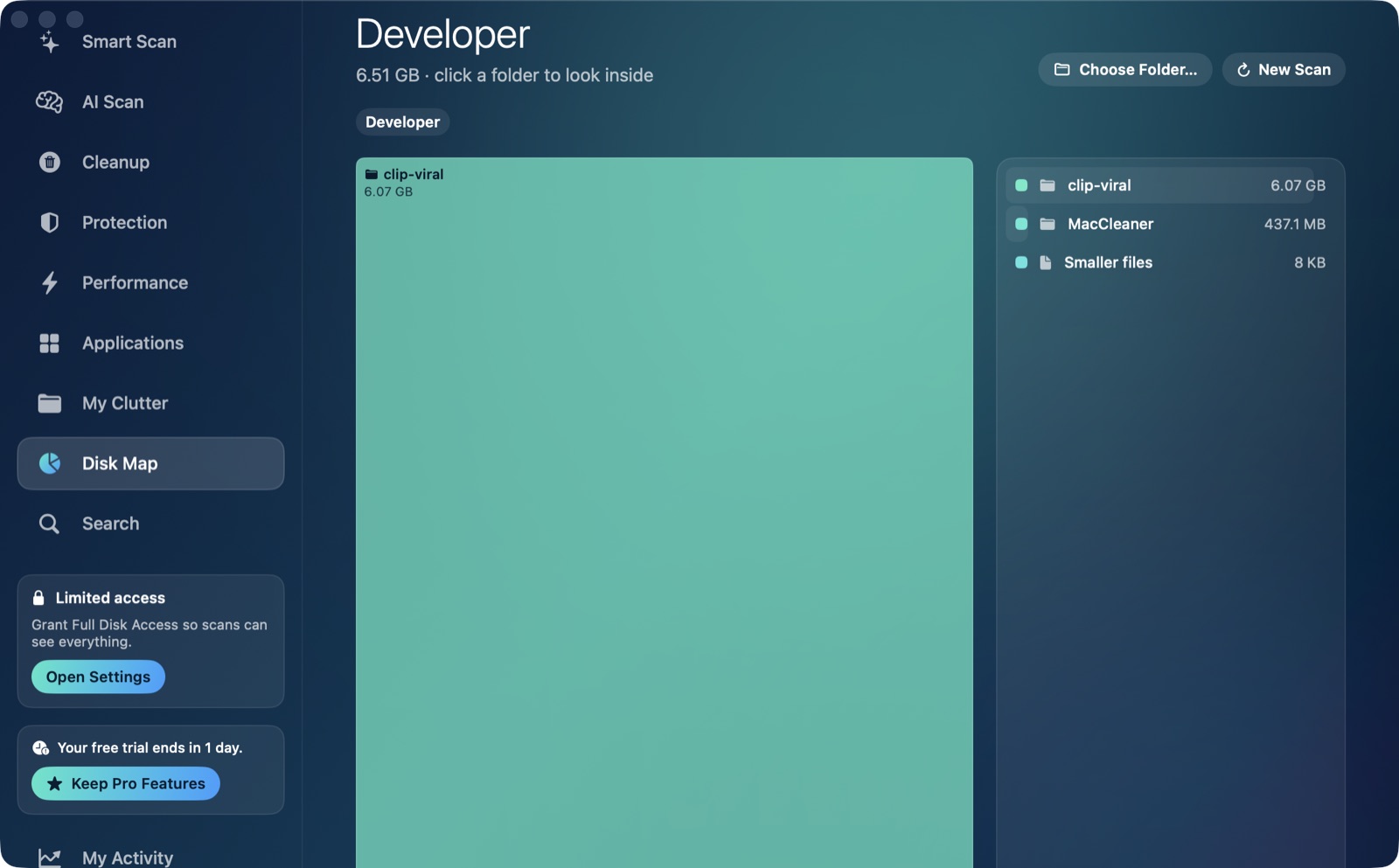
What does help: pointing Disk Map's treemap directly at your Desktop (or wherever screenshots have piled up) shows the folder's actual total size as one visual block relative to everything else on disk, even when no single file inside it is large enough to flag on its own — the same way it surfaces any folder whose size comes from quantity rather than from one big file. Search can also find every file named "Screenshot" by name across your whole disk in one pass, the same Spotlight-backed search described above, built into the app rather than a separate trip to Finder.
AI Mac Cleaner has a 7-day free trial with every feature unlocked and no card required, plans from $6.99/mo after. For other quietly-accumulating file types with the same "individually small, collectively large" shape, see our post on duplicate photos and recently deleted items taking up space.
Frequently asked questions
Where are screenshots saved by default on a Mac?
Your Desktop, unless you've changed it. Press Cmd+Shift+5, click Options, and pick a different "Save to" location if you'd rather they went somewhere else going forward.
Why don't screenshots show up when I search for large files?
A single screenshot is typically a few hundred kilobytes to a few megabytes — well under the threshold most "large files" scanners use (AI Mac Cleaner's My Clutter module flags files from 50MB up). The space adds up from having thousands of them, not from any one file being large.
Can AI Mac Cleaner find all my screenshots automatically?
There's no dedicated "screenshots" category, since they're just PNG files wherever you've saved them. The Search module can find every file named "Screenshot" across your disk by name, and Disk Map can show you the total size of the folder they're sitting in.
Is it safe to delete old screenshots?
Generally yes, as long as you don't need the content anymore — unlike a cache file, a deleted screenshot can't be regenerated automatically, so a quick skim before emptying the Trash is worth doing rather than batch-deleting blind.
Does changing the screenshot save location delete my existing screenshots?
No — the Options menu in the Cmd+Shift+5 toolbar only changes where future screenshots are saved. Existing screenshots stay exactly where they already are until you move or delete them yourself.