 AI Mac Cleaner
Downloads Folder Taking Up Space on Mac? Here's What's in There
Your Downloads folder isn't managed by macOS the way Trash or caches are — nothing clears it automatically. Here's why it quietly grows for years and how to clean it out safely.
Your Downloads folder is one of the few places on a Mac that macOS never cleans up on its own. Caches get pruned, Trash can be set to empty automatically, but whatever lands in ~/Downloads stays there until you move or delete it yourself — which is exactly why it's one of the most common places storage quietly disappears to over months or years of normal use.
Why it grows without you noticing
Every browser defaults to saving files straight into Downloads, and most people never change that. A single day of normal use can drop in a handful of files you'll never open again: a PDF you only needed to glance at, an email attachment someone sent, a ZIP you extracted and then forgot to remove. None of these feel significant on their own, which is exactly the problem — they add up silently, and because the folder isn't something you browse regularly, there's no natural moment where you'd notice it filling up.
What's usually eating the most space
A few categories account for most of the bulk in a typical Downloads folder:
- App installers —
.dmgand.pkgfiles for apps you already installed. Once the app is in/Applications, the installer itself is dead weight; it did its job and isn't needed again. - Duplicate downloads — browsers often save a second copy with "(1)" appended rather than overwriting, so the same file can exist two or three times without you realizing it.
- Large media files — videos, high-resolution photos, or large ZIP archives that were downloaded once, extracted or viewed, and never cleared out afterward.
- Old email attachments and documents — files saved once for a specific task that are no longer relevant, but were never explicitly deleted.
How to clean it out safely
- Sort by size, not name. In Finder, switch Downloads to List view and sort by Size — this surfaces the few large files responsible for most of the bulk, rather than making you scroll through everything chronologically.
- Check dates too. Anything older than a few months that you haven't touched since is a reasonable candidate for deletion — if you needed it again, you'd likely have already gone looking for it.
- Clear out installers first. They're the easiest safe win: if the app is already running from
/Applications, its.dmgor.pkginstaller has no further use. - Look for the "(1)" pattern to catch accidental duplicate downloads of the same file.
Setting a better default going forward
Beyond a one-time cleanup, it's worth changing where new downloads land in the first place if this is a recurring problem. Most browsers let you set a different default download location, or turn on a prompt that asks where to save each file rather than always dropping it into ~/Downloads — Safari's setting is under Settings → General → "File download location," and Chrome has an equivalent under Settings → Downloads → "Ask where to save each file before downloading." Either change means future downloads you actually want to keep get sorted at the moment you save them, instead of all piling into one folder that only gets reviewed when it's already a problem.
How AI Mac Cleaner helps
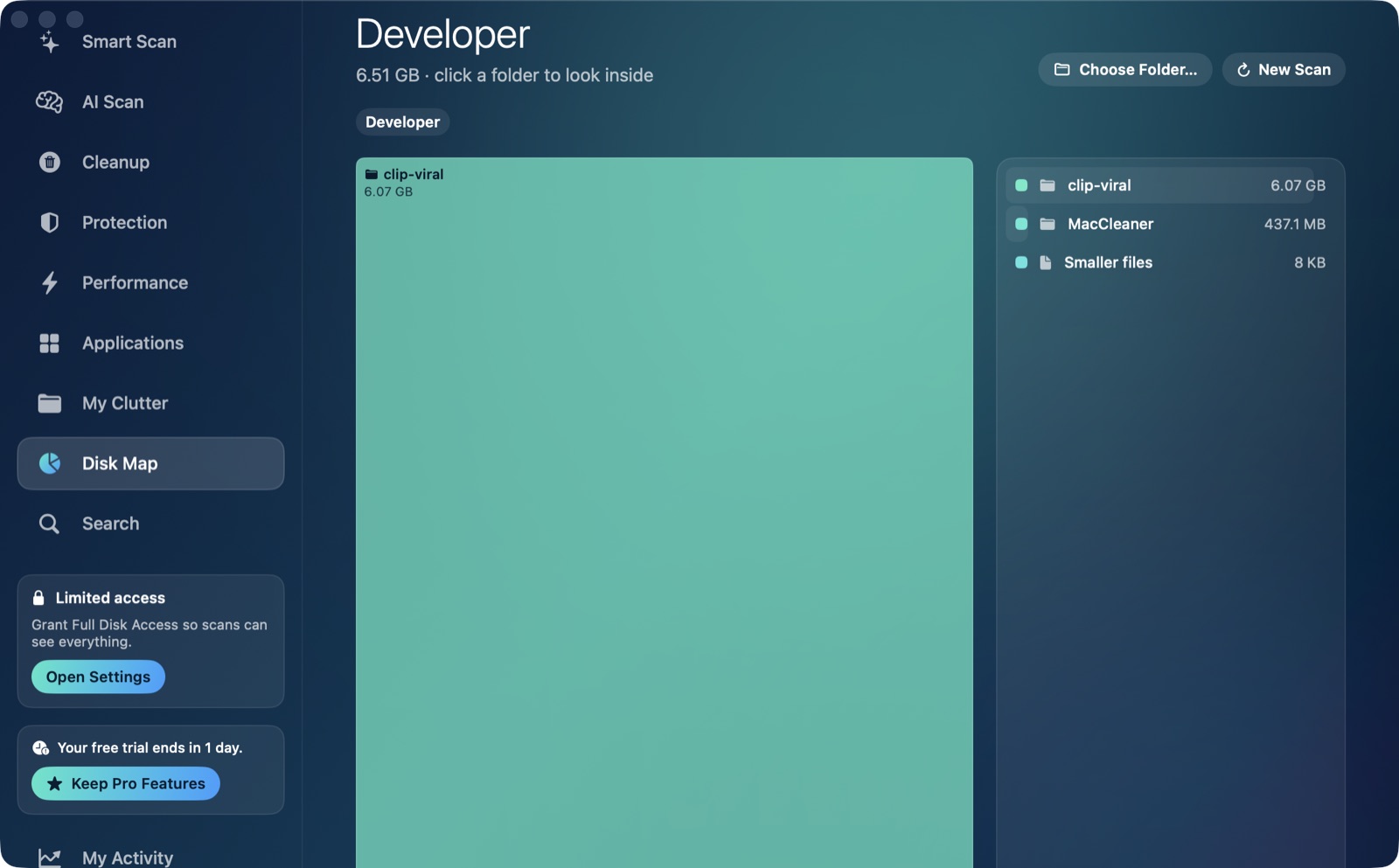
AI Mac Cleaner's disk map shows exactly how much space each top-level folder — including Downloads — is using relative to the rest of your disk, so you can see at a glance whether it's actually a significant contributor before spending time on it. From there, the large files finder and duplicate files finder both scan Downloads along with the rest of your drive, surfacing the single biggest files and any exact duplicates by content rather than just by filename. Nothing is deleted outright — everything goes through AI Mac Cleaner's Trash-only remover, so a file you move by mistake is recoverable until you empty the Trash yourself.
Frequently asked questions
Is it safe to just delete everything in my Downloads folder?
Usually, but check first — it's worth a quick scan for anything you downloaded recently that you haven't finished using yet (a document you're still editing, a file you meant to move elsewhere). Sorting by date makes this quick: anything untouched for months is low-risk to remove.
Does macOS ever clean the Downloads folder automatically?
No. Unlike caches or Trash (which can be set to auto-empty after 30 days), macOS has no automatic cleanup for Downloads. Whatever lands there stays until you act on it.
Why do I have the same file twice in Downloads?
Browsers typically save a new file with a number appended, like report (1).pdf, rather than overwriting an existing download with the same name — so re-downloading something you already had creates a duplicate instead of replacing it.
Can AI Mac Cleaner find duplicates specifically inside Downloads?
Yes — its duplicate files finder scans your whole drive, Downloads included, and matches files by actual content rather than filename, so it also catches duplicates that were renamed.