 AI Mac Cleaner
Clear Safari Cache on Mac: 3 Ways, From Fastest to Full Reset
Three ways to clear Safari's cache on Mac, from the 10-second Develop-menu route to a full history reset — plus why no cleaner app can do this one for you.
Want to clear Safari cache on Mac? The short answer: no cleaner app can do it for you — only Safari can clear its own cache, by Apple's design. The fastest route is Safari → Settings → Advanced → Show features for web developers, then Develop → Empty Caches. That's also the answer to "reset cache on Safari" — resetting and clearing are the same action here, there's no separate reset button. Below is that route in full, the two other ways to do it (one site only, or a full reset), and what's actually different about macOS 27.
Quick answer: how to clear Safari cache on Mac
- Open Safari, then go to Safari → Settings → Advanced.
- Turn on Show features for web developers.
- A new Develop menu appears in the Mac menu bar — click it.
- Choose Empty Caches from the Develop menu.
- Done — Safari's cache is cleared right away, with no restart needed and no effect on your history, cookies or saved logins.
That's the fastest of Safari's three cache-clearing routes. If you want a cache clear limited to one specific site, or a full reset that also clears history and signs you out everywhere, see the other two routes below.
Why Safari's cache is a special case
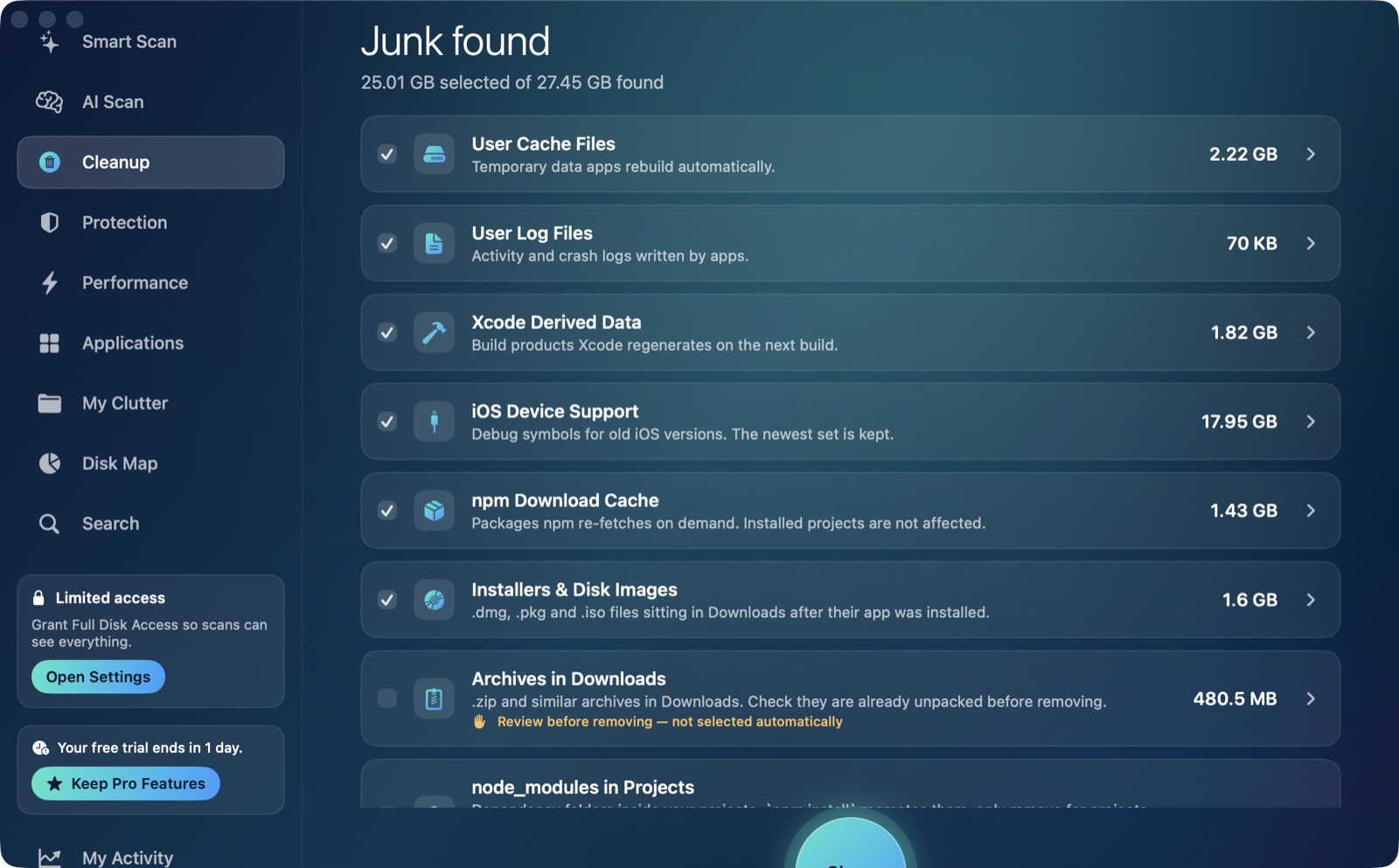
Safari's cache folder lives at ~/Library/Caches/com.apple.Safari. That com.apple. prefix isn't incidental — it's how macOS and well-behaved third-party tools alike recognize an Apple system app's own data and leave it alone rather than reaching in from outside. AI Mac Cleaner's User Cache Files category, for example, sweeps ~/Library/Caches generally but explicitly excludes anything prefixed com.apple. — which means running that category clears dozens of other apps' caches (Spotify, Slack, whatever else you have installed) but deliberately does not touch Safari's. That's not a gap to fix; it's the same protection Apple's own apps get from most responsible cleaning tools, Safari's cache included.
So if you want Safari's cache specifically cleared, it has to go through Safari itself.
Clearing Safari's cache the right way
Safari gives you three real routes, depending on how surgical you want to be:
Manage Website Data (the precise option). Safari → Settings → Privacy → Manage Website Data. This lists every site that's stored something locally and lets you remove all of it, or search for and remove specific sites one at a time. It's the closest thing to a cache-only clear, though it covers a bit more than pure cache (stored site data generally) rather than cookies and history, which stay separate here.
The Develop menu's Empty Caches (the cache-only option). If Safari's Develop menu isn't already visible, turn it on first: Safari → Settings → Advanced → Show features for web developers. With that on, Develop → Empty Caches clears just the cache, leaving cookies, history and logins untouched — the narrowest option of the three, at the cost of one extra setting to enable first. This is the literal "Safari clear caches" command people are usually looking for when that's the exact phrase they searched.
Clear History (the broad option, and the real "reset"). Safari → History → Clear History, choosing a time range. This is the most thorough reset — it clears cache, cookies, and browsing history together — which also means it signs you out of sites you were logged into. It's the right call if Safari is genuinely misbehaving and you want a clean slate, but overkill if you just want a stuck page to stop rendering wrong.
Clearing Safari's cache on macOS 27
macOS 27 "Golden Gate" didn't restructure Safari's settings menus, so every route above works exactly the same way on macOS 27 as it did on the macOS version before it:
- Manage Website Data: Safari → Settings → Privacy → Manage Website Data.
- Develop → Empty Caches: Safari → Settings → Advanced → turn on Show features for web developers, then use the Develop menu → Empty Caches.
- Clear History: Safari → History → Clear History.
We're being specific about this because it's a fair question — Apple does occasionally reshuffle Safari's menus (the move from "Preferences" to "Settings" a few macOS versions back is the most recent example of that kind of change). As of macOS 27, including its 27.0.1 and 27.1 updates, that hasn't happened again: these are the same three menu paths above, just confirmed current for this release. If a future Safari update moves them, this section is what we'll update first — we'd rather say "unchanged, verified" than guess at new UI we haven't actually seen.
Which one to actually use
- A specific site behaving oddly (stuck images, a page not updating) — Manage Website Data, removing just that site.
- Safari generally sluggish or acting up with no specific cause — Empty Caches via the Develop menu, once it's enabled, for a cache-only clear without logging you out of anything.
- You want a full reset and don't mind signing back into sites — Clear History, which takes cache, cookies and history together.
What AI Mac Cleaner actually does for Safari
To be direct about it: AI Mac Cleaner doesn't clear Safari's cache, and it isn't trying to quietly imply that it does. What it does do is cover everything else building up around Safari and your other apps — the User Cache Files category handles every non-Apple app's cache (Spotify, Slack, Chrome, and dozens more), My Clutter finds large files and duplicates sitting in your Downloads and elsewhere, and Cloud Cleanup handles iCloud Drive and third-party cloud-storage folders. Safari's own cache, Mail's, and other Apple-app caches are the one category left to Apple's own tools on purpose, the same way it would be dishonest to claim credit for clearing something the app deliberately steps around.
If you're also clearing other browsers' caches at the same time, see how Chrome's works — Chrome isn't Apple-prefixed, so the general caches category does reach that one, which is exactly the contrast worth knowing before you assume every browser behaves the same way. For the fuller picture of what's genuinely safe to clear on a Mac and what Apple protects on purpose, see is it safe to clear caches on a Mac.
Safari's own cache stays with Safari, but everything building up around it doesn't have to be cleared by hand one app at a time — AI Mac Cleaner has a 7-day free trial with every feature unlocked and no card required, plans from $6.99/mo after, to handle the non-Apple caches, duplicates and cloud clutter piling up alongside it.
Frequently asked questions
Can AI Mac Cleaner clear Safari's cache?
No. Safari's cache lives at ~/Library/Caches/com.apple.Safari, and AI Mac Cleaner's generic User Cache Files sweep deliberately skips anything prefixed com.apple. — including Safari's — so running that category won't touch it. Clearing it has to go through Safari itself.
How do I clear Safari cache on Mac?
Turn on Safari's Develop menu — Safari → Settings → Advanced → Show features for web developers — then choose Develop → Empty Caches. That's the fastest of Safari's three cache-clearing routes and the only one that clears just the cache, leaving cookies, history and logins untouched. See the quick-answer steps near the top of this post for the full walkthrough, or the comparison below for the other two routes (one site only, or a full reset).
How do I reset the cache on Safari?
"Reset" and "clear" mean the same thing in Safari — there's no separate reset button that does something different from the clear options above. Which one counts as a full reset depends on how much you want gone: Manage Website Data resets one site's stored data, the Develop menu's Empty Caches resets just the cache everywhere, and History → Clear History is the actual full reset — cache, cookies and history together, which also signs you out of every site.
What does "Safari clear caches" mean, and how do I do it?
It's the name of the real menu command: once you turn on Safari → Settings → Advanced → Show features for web developers, a Develop menu appears, and its Empty Caches item is the literal "clear caches" action — cache only, leaving cookies, history and logins untouched. It's the narrowest of Safari's three cache-clearing routes.
Will clearing Safari's cache sign me out of websites?
Only if you use Clear History, which clears cookies along with cache and history. Manage Website Data and the Develop menu's Empty Caches both leave your logged-in sessions alone.
How do I turn on Safari's Develop menu?
Safari → Settings → Advanced → turn on Show features for web developers. Once it's on, a Develop menu appears in the menu bar with an Empty Caches option.
Why does Safari's cache come back after I clear it?
It's meant to. Safari rebuilds cached page data as you browse because that's what makes a page you've already visited load faster the second time — a regrowing cache isn't a sign anything went wrong.
Does clearing Safari's cache fix Safari running slow?
It can help if a specific page is stuck showing stale content, but it isn't a general speed fix. If Safari itself is using a lot of CPU or memory, check what's actually making your Mac slow rather than assuming it's a cache problem.
How do I clear cache and cookies in Safari on a Mac, not just the cache?
Safari → History → Clear History is the only one of the three routes that touches cookies — it clears cache, cookies and browsing history together, which also signs you out of every site. Manage Website Data and the Develop menu's Empty Caches both leave cookies alone, so if cookies specifically need to go, Clear History is the one to use.