 AI Mac Cleaner
Uninstall VMware Fusion Completely Mac: Full Removal Guide
To uninstall VMware Fusion completely Mac's own Trash only removes the app itself — Broadcom's own manual list names everything else left behind, plus where your VMs live.
To uninstall VMware Fusion completely, Mac's own Trash only gets you partway there. Dragging VMware Fusion to the Trash removes the app bundle itself, but not much else. Broadcom's own support knowledge base publishes a manual-uninstall list naming more than a dozen separate files and folders Fusion leaves behind across both the system and user Library — and, separately, confirms your actual virtual machines aren't touched at all by any of this. Here's what actually needs removing, straight from that source.
Uninstalling the app itself
- Quit VMware Fusion and shut down (not just suspend) any virtual machine that's still running.
- Drag VMware Fusion from
/Applicationsto the Trash. - Empty the Trash.
That's the easy part, and it's where most people stop — which is exactly why Fusion's leftovers are a common, documented complaint rather than an edge case.
What Broadcom's own uninstall guide says to remove next
Broadcom's manual-uninstall knowledge base article (for Fusion 10.x and later) lists these locations explicitly, noting that some may not exist depending on your setup:
System Library (requires admin access):
/Library/Application Support/VMware Fusion/Library/Application Support/VMware/VMware Fusion/Library/Preferences/VMware Fusion/Library/Application Support/VMware/Usbarb.rules— the guide specifically says to keep this one if you still use any other VMware product on the Mac.
User Library (~/Library, hidden by default — hold Option while opening Finder's Go menu to reveal it):
~/Library/Application Support/VMware Fusion~/Library/Caches/com.vmware.fusion~/Library/Preferences/VMware Fusion~/Library/Preferences/com.vmware.fusion.plistand its matching.lockfile~/Library/Preferences/com.vmware.fusionDaemon.plistand its matching.lockfile~/Library/Preferences/com.vmware.fusionStartMenu.plistand its matching.lockfile~/Library/Preferences/com.vmware.fusion.LSSharedFileList.plistand its matching.lockfile
That's a longer leftover list than most apps — several of those .plist.lockfile pairs are specific to how Fusion tracks its own running state, not something you'd see for a typical Mac app.
Your virtual machines are a separate step
Broadcom's own guide is direct about this: uninstalling Fusion does not delete your virtual machines. By default, VMs live in Documents/Virtual Machines in your home folder (shown in Finder as "Virtual Machines," though the actual folder name carries a .localized suffix macOS hides) — a plain folder, not tucked under ~/Library the way the app's own settings are. To remove a VM you no longer want, find its package in that folder and move it to the Trash directly; each one is a single bundle holding the entire guest operating system, its virtual disk and any snapshots, so it's also usually the single largest thing Fusion is responsible for on your disk, far bigger than the app's own leftovers above.
How AI Mac Cleaner handles it
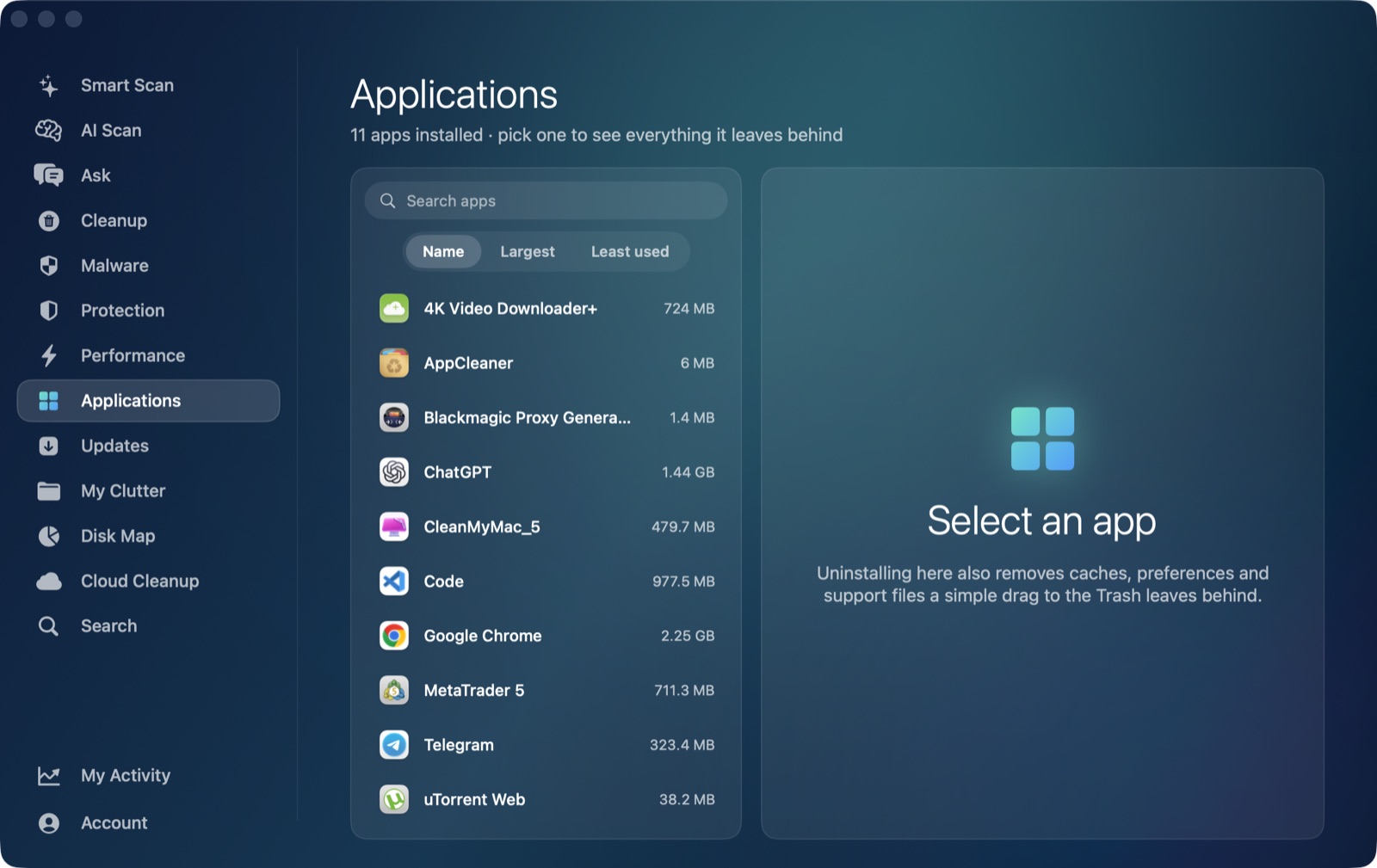
AI Mac Cleaner's Applications module works as an uninstaller that also finds leftovers in ~/Library, matching by an app's own bundle identifier — for Fusion, that's com.vmware.fusion. Point it at VMware Fusion and it searches Application Support, Caches, Preferences and the rest of the standard locations it scans, shows you what it found with its total size, and clears it in one confirmed action.
The more useful piece for Fusion specifically is the same one that handles Parallels: the Cleanup module has a dedicated, review-only Virtual Machines category that scans ~/Documents/Virtual Machines.localized (alongside Parallels' and UTM's own VM folders) for .vmwarevm bundles by extension, sizes each one, and lets you move any you no longer need to the Trash — without opening Fusion itself. It's review-only and nothing is selected by default, since a VM holds a whole operating system's worth of data you may still want, exactly the caution Broadcom's own guide gives for removing one by hand.
One thing the Applications module deliberately never does: list Apple's own apps, itself, or Claude as something you could uninstall. It's built for clearing out third-party software you installed and no longer want.
Nothing is deleted outright
Every removal in AI Mac Cleaner — an app's own ~/Library leftovers through Applications, or a .vmwarevm bundle through Cleanup's Virtual Machines category — goes through its Trash-only remover, which also refuses a fixed list of protected system paths. A VM moved to the Trash by mistake is recoverable until you empty it yourself, which matters given how much a single one can hold.
If you're clearing out other virtualization or developer disk hogs alongside Fusion, our Parallels Desktop post covers the same Virtual Machines category from the other VM vendor's side, and the Docker disk image post covers a different kind of large, review-only virtual disk. AI Mac Cleaner has a 7-day free trial with every feature unlocked and no card required, and plans start at $6.99/mo after that.
Frequently asked questions
Does uninstalling VMware Fusion delete my virtual machines?
No — Broadcom's own manual-uninstall guide confirms this directly. VMs live in Documents/Virtual Machines by default, separate from the app itself, and have to be removed as their own step.
Where does VMware Fusion store its leftover files?
Mainly ~/Library/Application Support/VMware Fusion, ~/Library/Caches/com.vmware.fusion and several com.vmware.fusion* preference files in ~/Library/Preferences, plus matching system-level folders under /Library. Broadcom's own knowledge base article lists the full set.
Can AI Mac Cleaner find and remove VMware Fusion's virtual machines?
Yes — the Cleanup module's Virtual Machines category scans the standard VM folders, including Fusion's .vmwarevm bundles under ~/Documents/Virtual Machines.localized, as a review-only category with nothing selected by default.
Is it safe to delete a .vmwarevm folder myself in Finder?
Yes, as long as you've exported or backed up anything you still need from inside it first — each bundle holds an entire guest operating system, so there's no undo once it's gone beyond the Trash. Moving it to the Trash rather than deleting it outright keeps a short recovery window while you confirm you got the right one.
Does the Usbarb.rules file need to be deleted too?
Broadcom's own guide says to keep /Library/Application Support/VMware/Usbarb.rules specifically if you still use any other VMware product on the Mac — it's shared, not exclusive to Fusion, so only remove it if Fusion was the only VMware software installed.